How to download your Vinted monthly statement
To download your monthly Vinted statement, open the "Settlement" tab in Vintlyze, choose a period (the previous month by default) and click a file format: XLSX, CSV or PDF. Vintlyze collects your sales and purchases from your Vinted account through its Chrome extension, so you do not have to copy anything by hand.
Last verified:
Step by step in Vintlyze
1. Install the extension, paste the sync key from Settings (/settings) into the extension popup (connection settings) and log in to Vinted. Without syncing, the statement will be empty.
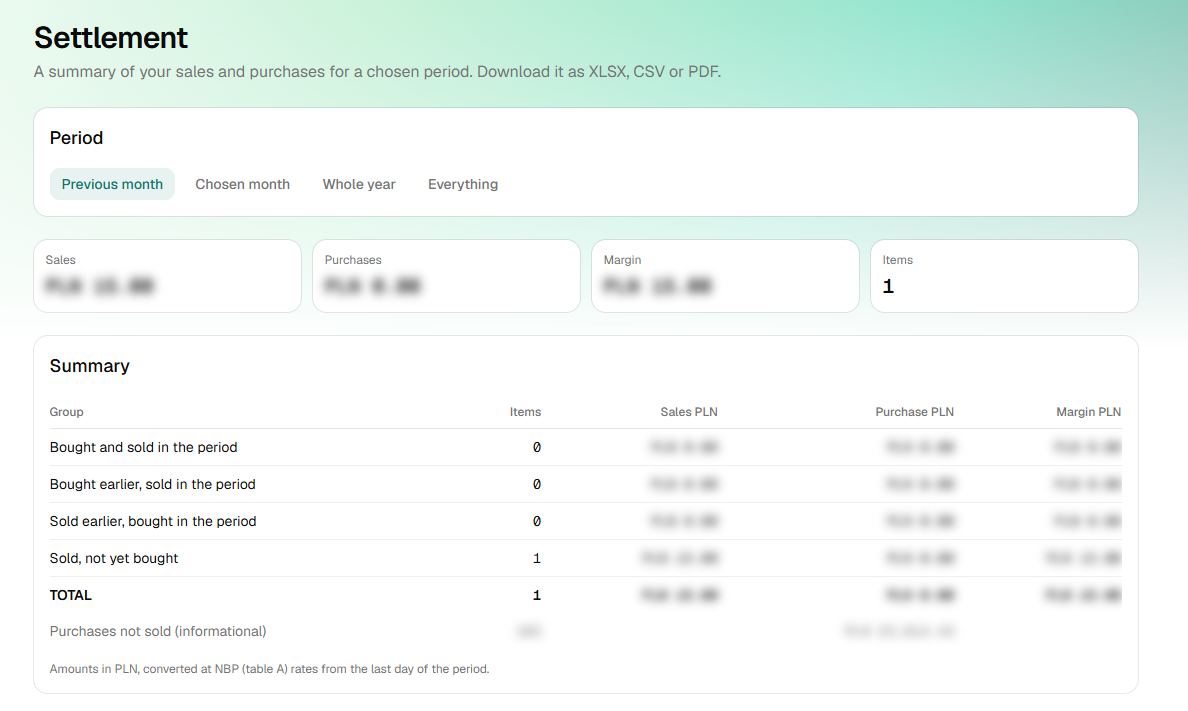
2. In the menu open "Settlement" and choose a period: "Previous month" (the default), "Chosen month", "Whole year" or "Everything". For a month or a year, enter the value and click "Show".
3. Check the tiles and the "Summary" table, then in the "Download settlement" section click XLSX, CSV or PDF.

What the statement contains
The screen shows four totals: sales, purchases, margin and number of items. The "Summary" table splits items into groups: "Bought and sold in the period", "Bought earlier, sold in the period", "Sold earlier, bought in the period" and "Sold, not yet bought", followed by a TOTAL row and an informational "Purchases not sold (informational)" row. Sales and purchases are matched per item, and margin is the difference.
Amounts are in PLN, at NBP (table A) rates from the last day of the period, never later than today (for "Everything", today's rate). If NBP is unavailable, the export uses current Stripe rates or marks the missing rate.
The file contains dates, price, currency, amounts in PLN, margin, the Vinted order ID and a TOTAL row.
When it helps your accountant
Send your accountant a file instead of screenshots. To check whether your sales fall under reporting, see the guide "DAC7 on Vinted: when the platform reports your sales".
On an account without a subscription only the first 5 saved orders and the first 5 saved purchases reach Vintlyze (later ones are skipped), so the statement will be incomplete.
Vintlyze
FAQ
- Where is the monthly statement in Vintlyze?
- In the "Settlement" tab in the app menu.
- Which formats can I download?
- XLSX, CSV (a ZIP archive) and PDF.
- Which periods are available?
- The previous month (default), a chosen month, a whole year, or everything.
- Does the statement work without a subscription?
- Partly: without a subscription only the first 5 saved orders and the first 5 saved purchases are kept, so the statement is incomplete. Full data requires a subscription.
- What currency are the amounts in?
- PLN, at NBP (table A) rates from the last day of the period, never later than today; if NBP is unavailable, the export uses Stripe rates or marks the missing rate.